
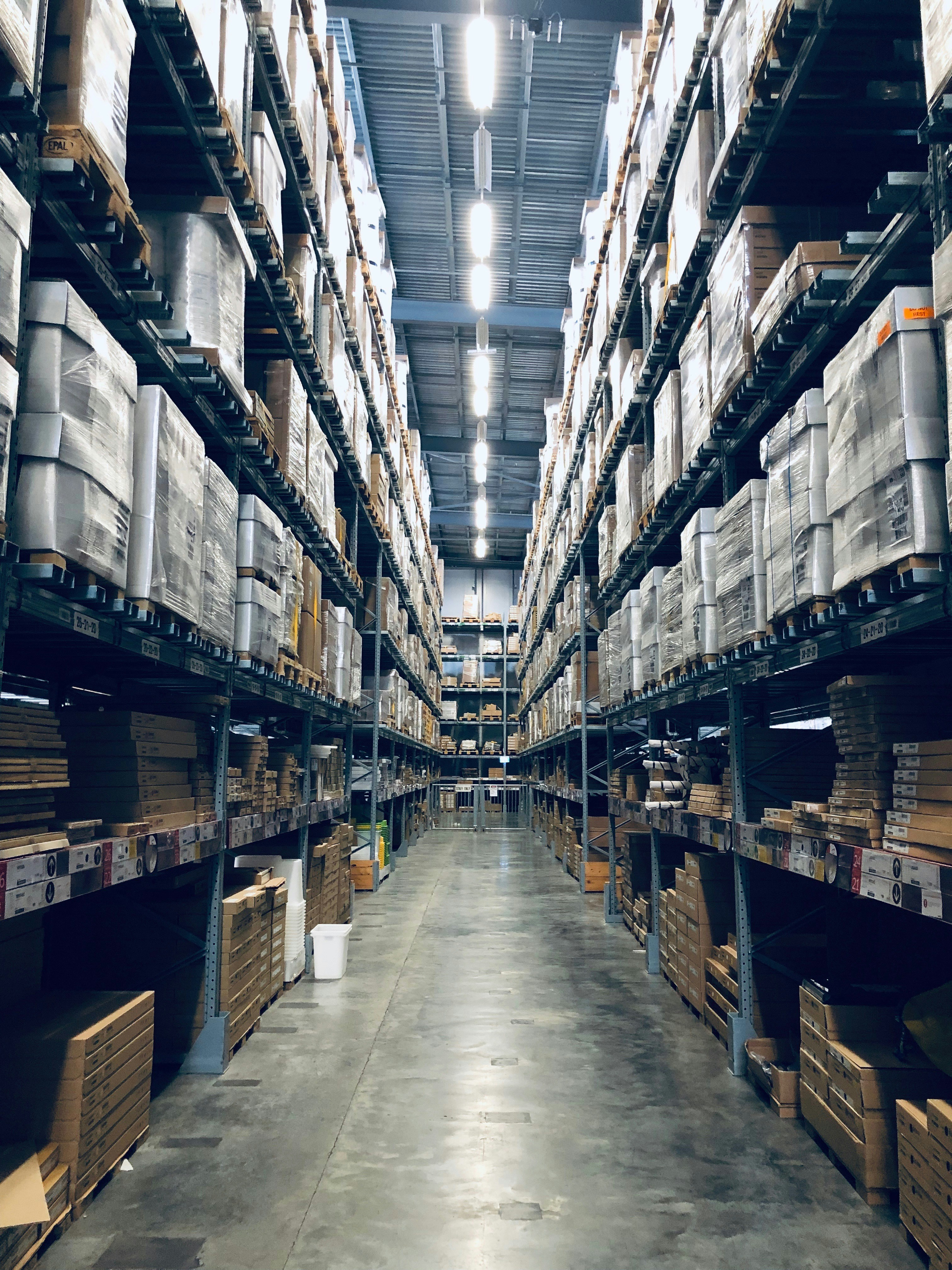
If you think warehouse zones, bins, and location tracking are only for Amazon-sized operations, think again. Even a 200-square-metre warehouse can benefit from basic zoning—it’s the difference between “check those pallets over there somewhere” and “it’s in Aisle B, Shelf 3, Bin 5.”
This guide breaks down how to design, label, and implement warehouse zone management software without needing a forklift fleet or a 10,000-pallet facility. We’ll cover zone types, bin naming conventions, barcode labels, and how to train your team to actually use the system.
Why Zone Management Matters (Even for Small Warehouses)
Most small businesses skip warehouse zoning because it sounds like overkill. But here’s what happens when you don’t zone:
- Picking takes forever — “Go find Product X” becomes a 10-minute treasure hunt
- Stock gets lost — Items sit in the wrong spot, creating phantom inventory
- Stocktakes are chaos — Counting becomes guesswork without clear locations
- New staff struggle — Without a system, knowledge lives in one person’s head
Warehouse zone management isn’t about complexity—it’s about consistency. When everyone knows Aisle A is for fast-movers and Aisle C is for bulk pallets, operations become predictable.
The ROI is simple: if proper zoning saves your picker 5 minutes per order across 50 orders a day, that’s 4+ hours saved weekly. Over a year, that’s 200+ hours—entire weeks of productivity.
Zone Types Explained
Warehouse zones divide your space by function and structure. Here’s how they work in practice:
Functional zones
These organise your warehouse by operational purpose:
Receiving zone
Where goods arrive and get inspected before storage. Should be near loading docks with clear floor space for pallets.
Best practice: Keep this area separate from picking zones to avoid congestion during busy receiving periods.
Storage zone
Bulk inventory that doesn’t move daily. Typically uses pallet racking or floor stacking for larger quantities.
Common mistake: Storing everything here. Fast-movers should be in picking zones.
Picking zone
High-turnover items stored at accessible heights (waist to shoulder level) for quick order fulfillment.
Tip: Position this closest to your packing area to minimise travel distance.
Packing/staging zone
Where picked items are verified, packed, and staged for dispatch. Requires bench space, packing materials, and label printers.
Sizing: Plan for 1 packing station per 30-50 orders/day.
Shipping zone
Final staging before carrier pickup. Should accommodate pallets/parcels sorted by carrier or route.
Layout: Consider separate areas for satchels vs pallets, or by carrier if you use multiple providers.
Structural zones
These mirror your physical warehouse layout:
Areas
Top-level zones for major warehouse sections. Examples: “North Wing,” “Cold Storage,” “Hazmat Area.”
Use areas when you have distinct physical spaces separated by walls, temperature zones, or security requirements.
Aisles
Rows of storage units running the length of your warehouse. Labeled A-Z or 1-10 for navigation.
Naming convention: Use letters for aisles perpendicular to loading docks, numbers for parallel aisles.
Racks
Vertical storage frames within an aisle. Often numbered sequentially (Rack 1, Rack 2…).
Bays
Horizontal sections of a rack. If your rack is 12 metres long with dividers every 2 metres, that’s 6 bays.
Standard sizing: Bays typically match pallet widths (1.2m for Australian standard pallets).
Shelves
Individual storage surfaces within a bay. Numbered from bottom to top (Shelf 1 = floor level, Shelf 5 = top).
Levels
Alternative term for shelves, often used in pick-module systems.
How to Design Your Zone Layout
Step 1: Map your current space
Sketch your warehouse on paper or use free tools like Google Drawings. Mark:
- Loading dock locations
- Fixed obstacles (columns, electrical panels, fire exits)
- Current product placement
- Traffic flow patterns
Step 2: Analyse your SKU profile
Group your products by:
- Turnover rate — How often they’re picked (daily, weekly, monthly)
- Size/weight — Hand-pick vs forklift items
- Special requirements — Temperature control, hazmat, high-value security
Step 3: Apply the 80/20 rule
Typically 20% of your SKUs generate 80% of your picks. Position these in your picking zone at ergonomic heights (golden zone: 0.75m - 1.5m from floor).
Bulk/slow-movers go higher or deeper in the warehouse.
Step 4: Establish functional zones
Based on your operation, designate areas for:
- Receiving (near dock)
- Storage (bulk/reserve stock)
- Picking (fast-movers, accessible)
- Packing (benches, materials)
- Shipping (staging for carriers)
Step 5: Create structural hierarchy
Within each functional zone, establish your structural addressing:
Simple warehouse (under 500 sqm):
Area → Aisle → Shelf
Example: North Wing → Aisle A → Shelf 3
Medium warehouse (500-2000 sqm):
Area → Aisle → Rack → Shelf
Example: Main Storage → Aisle 2 → Rack B → Shelf 4
Complex warehouse (over 2000 sqm or multi-temp):
Area → Aisle → Rack → Bay → Shelf → Level
Example: Cold Storage → Aisle C → Rack 5 → Bay 3 → Shelf 2
Key principle: Use only as many levels as you need. Over-complicating makes it harder to remember.
Bin Location Naming Conventions
Bins are the smallest addressable storage unit in your warehouse. Think of them as the “street address” for your stock.
Format examples
Alphanumeric: A1-3-5
- Aisle A, Rack 1, Bay 3, Shelf 5
Hierarchical: NORTH-A-R1-B3-S5
- North Wing, Aisle A, Rack 1, Bay 3, Shelf 5
Compact: A135
- Aisle A, position 1-3-5 (saves label space)
Sequential: BIN-0001, BIN-0002
- Simple but loses physical meaning
Choosing your convention
Go alphanumeric if:
- Your warehouse is under 1000 sqm
- You have straightforward aisles and shelving
- Staff will memorise locations
Go hierarchical if:
- You have multiple areas or temperature zones
- You need to filter by zone in software
- You’re scaling and need flexibility
Go sequential if:
- You’re starting simple and plan to grow
- Your warehouse layout changes frequently
- You rely entirely on barcode scanning
Special bin types
Mark bins with prefixes or suffixes for special handling:
PALLET-A1-3— Pallet storage binCOLD-B2-5— Cold storage binHV-C1-2— High-value secure binHAZMAT-D1-1— Hazardous materials binFLOOR-E1— Floor-level bulk storage
Setting Up Zones in Warehouse Management Software
Modern warehouse zone management software makes this easier, but you still need a plan before clicking “create zone.”
Step 1: Define your zone structure
Using your layout design, create zones from top to bottom:
- Create Area zones first (e.g., “Main Storage,” “Cold Room”)
- Create Aisle zones as children of areas
- Create Rack/Bay/Shelf zones as children of aisles
Most systems support parent-child relationships, letting you nest zones hierarchically.
Step 2: Create bins and assign to zones
Manual creation:
- Create bins one-by-one with descriptive names
- Assign each bin to its parent zone
- Set bin type (standard, pallet, oversized, cold storage, hazmat)
Bulk import:
- Use CSV templates to import hundreds of bins at once
- Include columns: bin ID, location description, bin type, storage type, zone ID
- Validate before import to avoid typos
Example CSV:
binId,location,binType,storageType,zoneId,zoneName
A1-1-1,Aisle A Rack 1 Shelf 1,standard,shelf,AISLE-A,Aisle A
A1-1-2,Aisle A Rack 1 Shelf 2,standard,shelf,AISLE-A,Aisle A
A1-2-1,Aisle A Rack 1 Shelf 1 Bay 2,pallet,pallet,AISLE-A,Aisle A
Step 3: Print and affix labels
Generate barcode or QR code labels for:
- Zone markers — Large signs at aisle ends (
ZONE:AISLE-A) - Bin labels — Small stickers on each shelf/bin (
BIN:A1-1-1)
Label formats:
- Zone QR codes — Scan to filter bins by zone in mobile app
- Bin barcodes — Scan during receive/pick operations to confirm location
Material tips:
- Use laminated or plastic labels in cold storage or outdoor areas
- Magnetic labels work well for racking that moves
- Consider RFID tags for high-value or high-turnover bins
Step 4: Configure location rules
Set up rules in your warehouse zone management software for:
- Put-away logic — Where to store new stock (FIFO zones, overflow zones)
- Pick priority — Which bin to pick from first (FIFO, nearest to packing)
- Replenishment triggers — When to move stock from bulk to pick zones
Step 5: Test with real picks
Before going live, run test picks:
- Create fake inbound tasks and allocate to bins
- Walk the pick route with mobile scanner
- Verify labels scan correctly and bins match physical locations
- Adjust zone structure if needed
Barcode Labels for Locations
Labels are the bridge between your software and physical warehouse. Get this wrong and your system fails.
What to include on bin labels
Minimum information:
- Bin ID (human-readable)
- Barcode/QR code (machine-readable)
Optional but useful:
- Zone name
- Bin type icon
- Storage type
Example layout:
┌─────────────────────┐
│   AISLE A - RACK 1  │
│                     │
│    A1-3-5           │ ← Bin ID
│                     │
│  ▓▓▓▓▓▓▓▓▓▓▓▓▓▓▓▓  │ ← QR Code
│  ▓▓▓▓▓▓▓▓▓▓▓▓▓▓▓▓  │
│  ▓▓▓▓▓▓▓▓▓▓▓▓▓▓▓▓  │
│                     │
│  [PALLET STORAGE]   │ ← Bin type
└─────────────────────┘
Barcode vs QR code
Use barcodes (Code 128, Code 39) when:
- You need fast line-of-sight scanning
- Labels are on narrow shelves
- Older scanners are in use
Use QR codes when:
- You want to embed more data (zone ID + bin ID + URL)
- Scanning with smartphones or tablets
- Space is limited (QR codes are more compact)
Label size recommendations
| Location type | Label size | Format |
|---|---|---|
| Pallet racking (high) | 100mm × 150mm | Large text, QR code |
| Pick shelves (waist-height) | 50mm × 75mm | Standard barcode |
| Bin dividers (small parts) | 25mm × 50mm | Compact QR code |
| Zone markers (aisle signs) | 200mm × 300mm | Large QR code + text |
Printing labels
Desktop label printer (Dymo, Brother):
- Good for small warehouses (under 100 bins)
- Thermal labels don’t fade
- Easy to replace individual labels
Industrial label printer (Zebra, Datamax):
- Essential for large warehouses (100+ bins)
- Faster printing for bulk runs
- Durable labels for harsh environments
Print shop:
- Economical for initial setup (500+ labels)
- Use plastic or laminated labels
- Request pre-cut sizes for easy application
Placement tips
- Eye level where possible — Faster scanning
- Consistent position — Always top-left corner of bin
- Avoid corners — Labels wear out from impacts
- Double-label high bins — One at ground level for restocking, one at bin height for picking
Training Your Team
The best warehouse zone management system fails if staff don’t use it correctly.
Day 1: Zone walkthrough
- Walk new staff through each zone
- Explain naming convention logic (Aisle A = near dock, Zone C = bulk)
- Show them bin label locations
- Practice scanning 5-10 bins
Week 1: Supervised picks
- Assign simple picks under supervision
- Verify they scan bins before picking
- Correct location errors immediately
- Track accuracy (aim for 98%+ after first week)
Week 2: Full tasks
- Graduate to batch picks or multi-line orders
- Introduce exception handling (short-pick, wrong location)
- Review pick accuracy daily
Ongoing: Refresher training
- Monthly team meetings to review common errors
- Update training when zones change
- Share metrics (pick speed, accuracy by zone)
Handling resistance
Common objections and responses:
“It’s faster to just grab it” → Show data: scanning reduces errors by 90%+, errors cost 20 minutes to fix.
“I know where everything is” → Great! But what happens when you’re off sick? Systems ensure consistency.
“Scanning slows me down” → Time a full pick workflow. Scanning adds 2 seconds per line but saves 15 minutes hunting for mispicks.
Common Mistakes to Avoid
Mistake 1: Over-engineering zones
Creating 10 levels of hierarchy (Area > Region > Zone > Aisle > Rack > Bay > Shelf > Level > Position) sounds smart but becomes unusable.
Fix: Start with 2-3 levels (Area > Aisle > Shelf). Add complexity only when you need it.
Mistake 2: No physical labels
Setting up zones in software but not labeling the warehouse. Staff ignore the system and pick from memory.
Fix: Print and affix labels on day one. No labels = no system.
Mistake 3: Inconsistent naming
Using “Aisle A” and “AISLE_A” and “A” interchangeably. Software treats these as different zones.
Fix: Document your naming convention and enforce it strictly. Use bulk import to maintain consistency.
Mistake 4: Ignoring bin capacity
Assigning 50 SKUs to a bin designed for 5. Leads to overflow, mispicks, and damage.
Fix: Define bin capacity limits in your software. Block allocations when bins are full.
Mistake 5: Static zones
Warehouse layouts evolve but zones stay frozen in software from 2015.
Fix: Review zone structure quarterly. Deactivate unused zones, create new ones for expanded areas.
Mistake 6: No zone-based stocktakes
Counting the entire warehouse in one session, causing chaos and inaccuracies.
Fix: Conduct rolling stocktakes by zone (Aisle A this week, Aisle B next week). Freeze movements in that zone during counts.
Mistake 7: Picking from storage zones
Using bulk storage zones as picking zones, forcing pickers to climb ladders or use forklifts for every order.
Fix: Establish forward-pick zones and replenish from bulk storage. Pick from waist-height locations.
Warehouse Zone Management Software: What to Look For
If you’re evaluating warehouse zone management software, prioritise these features:
Must-have features
- Hierarchical zones — Support for parent-child zone relationships
- Bin management — Create, edit, activate/deactivate bins
- Bulk import — CSV upload for bins and zones
- Barcode/QR support — Scan zones and bins on mobile devices
- Zone filtering — View bins by zone, filter picks by zone
- Label printing — Generate printable labels with barcodes/QR codes
- Stocktake by zone — Create stocktake sessions scoped to specific zones
- Activity audit — Track all stock movements by zone and bin
Nice-to-have features
- Heatmaps — Visualise pick frequency by zone
- Put-away suggestions — Recommend bins based on FIFO, proximity, bin type
- Pick path optimisation — Route pickers efficiently through zones
- Capacity tracking — Monitor bin utilization and prevent overstocking
- Mobile app — Native iOS/Android app for warehouse floor operations
- RFID integration — For high-value or high-turnover inventory
- Slotting analysis — Recommend SKU placement based on velocity
Integration requirements
Ensure your warehouse zone management software integrates with:
- Inventory system — Real-time stock level updates
- Order management — Automatic pick task generation from sales orders
- Shipping software — Label generation and carrier manifesting
- ERP/accounting — Stock valuation and COGS updates
Without integration, you’ll spend hours manually updating multiple systems—defeating the purpose of warehouse management software.
Real-World Example: 500 sqm SMB Warehouse
Let’s walk through a practical setup for a small ecommerce business with a 500 sqm warehouse shipping 200 orders/day.
Layout
┌────────────────────────────────────────┐
│  RECEIVING (50 sqm)                    │
│  - Dock doors                          │
│  - Inspection area                     │
└────────────────────────────────────────┘
┌─────────────────┬──────────────────────┐
│  STORAGE (200)  │  PICKING ZONE (150)  │
│  - Aisle A-D    │  - Aisle P1-P3       │
│  - Pallet racks │  - Shelving          │
│  - Slow movers  │  - Fast movers       │
└─────────────────┴──────────────────────┘
┌────────────────────────────────────────┐
│  PACKING & SHIPPING (100 sqm)          │
│  - 4 pack benches                      │
│  - Staging by carrier                  │
└────────────────────────────────────────┘
Zone structure
Functional zones:
RECEIVING— Receiving areaSTORAGE— Bulk storagePICKING— Fast-mover picking zonePACKING— Pack benchesSHIPPING— Staged for dispatch
Structural zones (within STORAGE):
STORAGE-A→A-R1,A-R2,A-R3(racks)STORAGE-B→B-R1,B-R2,B-R3STORAGE-C→C-R1,C-R2,C-R3STORAGE-D→D-R1,D-R2,D-R3
Structural zones (within PICKING):
PICKING-P1→P1-S1,P1-S2,P1-S3,P1-S4(shelves)PICKING-P2→P2-S1,P2-S2,P2-S3,P2-S4PICKING-P3→P3-S1,P3-S2,P3-S3,P3-S4
Bin naming
Storage bins (pallet): A-R1-01, A-R1-02, A-R1-03…
Picking bins (shelf): P1-S2-A, P1-S2-B, P1-S2-C…
Workflow
- Inbound: Goods received in
RECEIVING, inspected, then allocated toSTORAGEorPICKINGbased on velocity - Replenishment: When
PICKINGbins run low, transfer task fromSTORAGEtoPICKING - Outbound: Picks happen in
PICKINGzone only, items move toPACKING, then stage inSHIPPINGby carrier - Stocktake: Rolling counts—one zone per week (Monday:
PICKING-P1, Tuesday:PICKING-P2, etc.)
Results after 3 months
- Pick time reduced 40% — From 12 min/order to 7 min/order
- Pick accuracy improved to 99.2% — Down from 94% (manual)
- Stocktake variance reduced 60% — Zone-based counts caught errors early
- Onboarding time cut in half — New staff productive in 3 days vs 7 days
Warehouse Zone Management for Ecommerce Fulfillment
If you’re running ecommerce fulfillment, zone management directly impacts your ability to hit same-day or next-day dispatch cutoffs.
Zone strategy for ecommerce
Fast-pick zone:
- Top 20% of SKUs (by order frequency)
- Single-shelf locations (no climbing)
- Positioned closest to packing benches
- Replenished 2x daily from bulk storage
Bulk storage zone:
- Remaining 80% of SKUs
- Pallet racking or floor stacking
- Accessed only for replenishment or slow-mover picks
Returns/QC zone:
- Separate area for returns processing
- Inspect, restock, or dispose
- Prevent contamination of good stock
Kitting zone (if applicable):
- Assemble multi-item kits or bundles
- Keep components together
- Transfer finished kits to fast-pick
Picking strategies by zone
Single-order picking:
- Pick one order at a time
- Good for low volumes (under 50 orders/day)
- Simple but slow
Batch picking:
- Pick multiple orders simultaneously
- Group by zone (pick all P1 items for 10 orders, then P2 items)
- Efficient for medium volumes (50-200 orders/day)
Wave picking:
- Pick in waves based on carrier cutoff times
- Morning wave: Express orders by 11am
- Afternoon wave: Standard orders by 4pm
- Requires zone-based routing to avoid backtracking
Zone picking:
- Assign pickers to specific zones
- Order travels through zones (relay race style)
- Best for high volumes (200+ orders/day) with multi-zone warehouses
Learn more about ecommerce fulfillment strategies.
How EQUOS9 Warehouse Module Handles Zone Management
The EQUOS9 Warehouse module provides comprehensive warehouse zone management software designed for SMBs and 3PLs.
Key features
Hierarchical zone structure:
- Create zones with types: Area, Aisle, Rack, Bay, Shelf, Level
- Nest zones to mirror your physical layout
- Filter bins, tasks, and stocktakes by zone
Bin management:
- Create bins manually or import via CSV
- Assign bins to zones
- Set bin types (standard, pallet, oversized, cold storage, hazmat, high-value)
- Track bin capacity and prevent overallocation
- Activate/deactivate bins to control availability
Mobile-optimized workflows:
- Scan QR codes on zone markers to filter bins
- Scan barcodes on bin labels during receive/pick operations
- Touch-friendly interface for gloved hands
- Offline mode for areas with poor connectivity
Zone-based stocktakes:
- Create stocktake sessions scoped to specific zones
- Count by bin or by SKU
- Track variances by zone
- Finalize counts to update stock levels
Label printing:
- Generate printable labels for zones and bins
- QR codes for zones, barcodes for bins
- Multiple label sizes for different applications
Activity audit:
- Track all stock movements by zone and bin
- Filter audit logs by zone, bin, SKU, user, date range
- Export to CSV or PDF for compliance
Integration:
- Real-time stock updates with Inventory module
- Automatic pick task generation from sales orders
- Seamless handoff to shipping/freight workflows
See full Warehouse module documentation for detailed feature walkthrough.
Next Steps: Implementing Zone Management This Week
Ready to stop losing stock and start organizing your warehouse? Here’s your action plan:
This week
- Map your warehouse — Sketch layout on paper, mark aisles and functional areas
- Define zone structure — Choose 2-3 hierarchy levels (Area > Aisle > Shelf)
- Create naming convention — Document bin ID format and share with team
- Order labels — Get 100 bin labels printed (start small, expand later)
Next week
- Set up zones in software — Create zones, import bins via CSV
- Label physical locations — Affix bin labels to shelves/racks
- Train 1-2 staff — Walk through zone structure, practice scanning
- Run test picks — Execute 10 test picks, verify labels work
Month 1
- Go live with one zone — Start with your picking zone only
- Measure baseline — Track pick time, accuracy before/after
- Expand to storage zones — Add bulk storage bins
- Conduct first zone-based stocktake — Count one zone, reconcile variances
Month 2
- Review and refine — Adjust bin placements based on pick frequency
- Train remaining staff — Get everyone on the system
- Implement replenishment rules — Automate bulk-to-pick transfers
- Celebrate wins — Share metrics with team (time saved, accuracy improved)
Conclusion
Warehouse zone management isn’t rocket science—it’s structured common sense. By dividing your warehouse into functional and structural zones, labeling bins clearly, and using warehouse zone management software to track movements, you eliminate guesswork and create a warehouse that scales.
Start simple. Pick a naming convention, print some labels, and get your team scanning. You don’t need a 10,000 sqm facility or a million-dollar WMS. You need bins, labels, and discipline.
The difference between a chaotic warehouse and an efficient one isn’t size—it’s system.
Ready to implement warehouse zone management? Explore the EQUOS9 Warehouse module to see how hierarchical zones, bin location tracking, and mobile-optimized workflows can transform your warehouse operations.